Idea stage founders- getting started (video)
Idea stage founders can use sherloc to help them plan, forecast, and create different scenarios.
If you do not have a full set of financial data, you can still use sherloc to help with your business. Use our templates to help you plan for the future and get your business ready for the next stage.
Step 1: Download our templates
To get started with sherloc all you need is a simple income statement and business plan. Download our starter income statement and business data to get started.
Step 2: Customise the templates for your business
Income statement: the income statement has basic line items for revenue and expenses. Feel free to change, add or subtract if you need. The template contains some basic formulas, ensure that the formulas are still valid before uploading to sherloc.
- Sales targets: revenue for sales and cost of goods sold are a factor of sales volume.
- Staff costs: we have used categories which can help make forecasting easier. PAYE and contract staff have been labelled to add National Insurance charges for our PAYE staff only.
- Non-staff: all other costs for our business. These costs are mostly constant and spread evenly over the year. Your costs may differ and can be changed to reflect your circumstances.
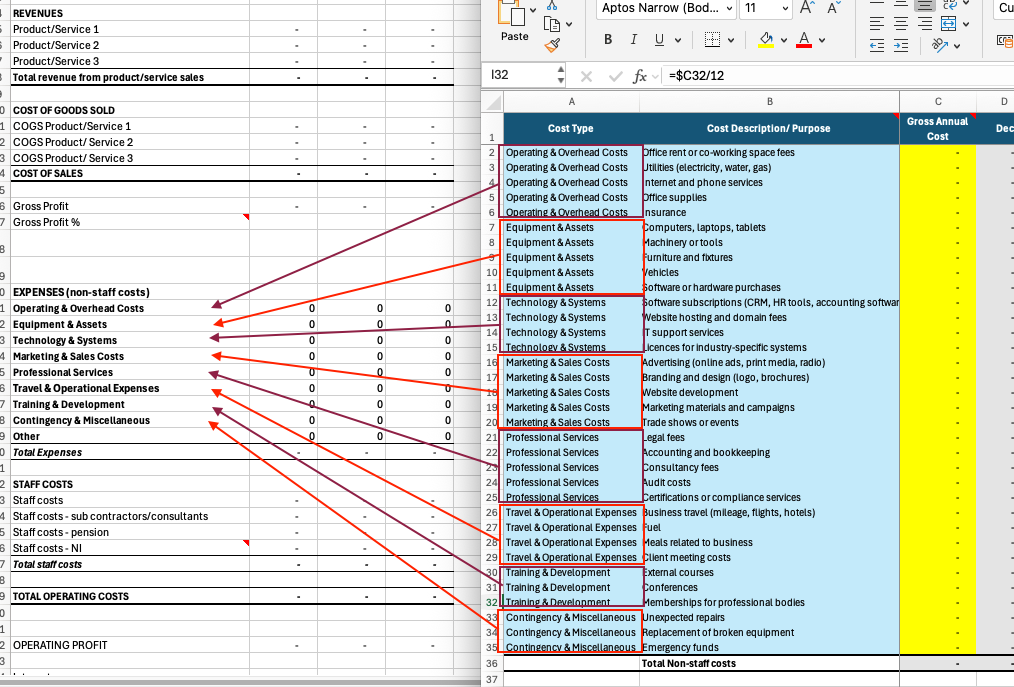
You can see the line items on the business data are aligned with the financials for ease of use.
Step 3: upload to sherloc and create forecast
Upload both files to sherloc and follow the prompts to create your forecast.
When asked, map your Cash, Revenue, and Operating Expenses- this will power your ratios and cash at bank calculations.
The forecasted months are simply the last month that has been copied across the row for the forecasted months- either a number, 0, or a formula.
Step 4: add assumptions
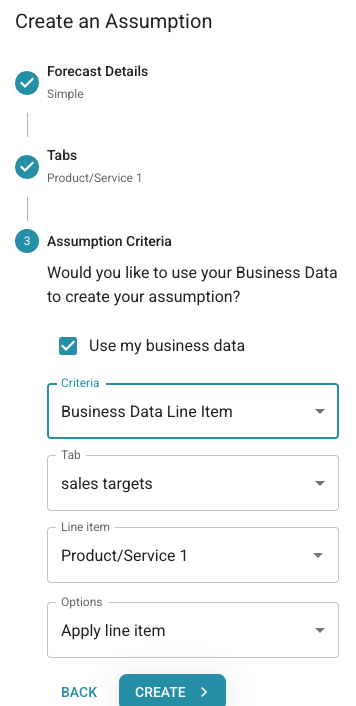
The assumption builder is how we can link our business data to the items in the income statement to fill out the forecast. In the template, all of the business data can be linked to the income statement.
Example:
Click ‘create assumption’. First choose the line item from our income statement that we want to link to the business data- ‘Product/Service 1’. Check ‘Use my business data’ and select ‘Business Data Line Item’. Our corresponding entry is ‘Product/Service 1’ from our ‘sales targets’ tab.
Repeat for all other line items that you would like to add to your forecast. Using the ‘Business Data Category’ feature in the assumption builder can be used to sum-up similar business data.
Step 5: Save and copy
All of these assumptions make up your baseline forecast. Keep this forecast untouched and create a copy. When you copy a forecast, it will copy all your assumptions. You can now edit the new forecast to explore new assumptions and scenarios, while keeping the original forecast untouched.
You can delete assumptions and create new ones, or edit the business data for those assumptions.
Step 6: Explore graphs and ratios
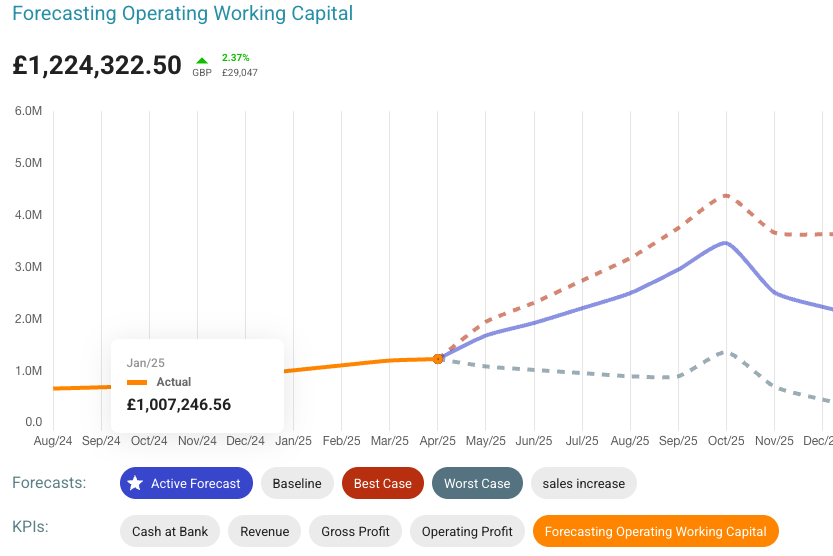
Take a look at the performance page to see how your scenarios affect your revenue and cashflow.
Walkthrough: using our templates to create your first forecast and add assumptions.